> ## Documentation Index
> Fetch the complete documentation index at: https://docs.mosaic.so/llms.txt
> Use this file to discover all available pages before exploring further.
# 7. Motion Graphics
> Add motion graphics and animations to your video to emphasize information, highlight talking points, or create engaging visual storytelling.
Add motion graphics and animations to your video to emphasize information, highlight talking points, or create a more engaging visual storytelling style.
Motion graphics are AI-generated based on your instructions. They can appear as overlays during speech, fullscreen explainer slides, or contextual inserts depending on how you configure the tile.
## How It Works
The Motion Graphics tile takes in your video and a **prompt describing the type of motion graphics you want**, then generates visual elements that match your style and intent.
 ## Input Fields & Controls
### Style Prompt (Required)
Describe the **visual style** and **function** of the graphics.
Examples:
* "Cinematic Vox-style graphics that explain the talking points"
* "Minimal tech UI diagrams with arrows and labels"
* "Playful YouTube-style pop-up text for comedic emphasis"
* "Infographic overlays using bold colors and icons"
### Full Screen Toggle (Optional)
When **enabled**, motion graphics appear as fullscreen slides — the speaker video may cut away entirely. Best for explainers, charts, and data slides.
When **disabled** (default), graphics appear as overlays on top of your video. Ideal for speaking-head, narrative, or commentary videos.
### Reference Links (Optional)
Comma-separated URLs the AI will research for factual content (e.g., product pages, Wikipedia articles, docs).
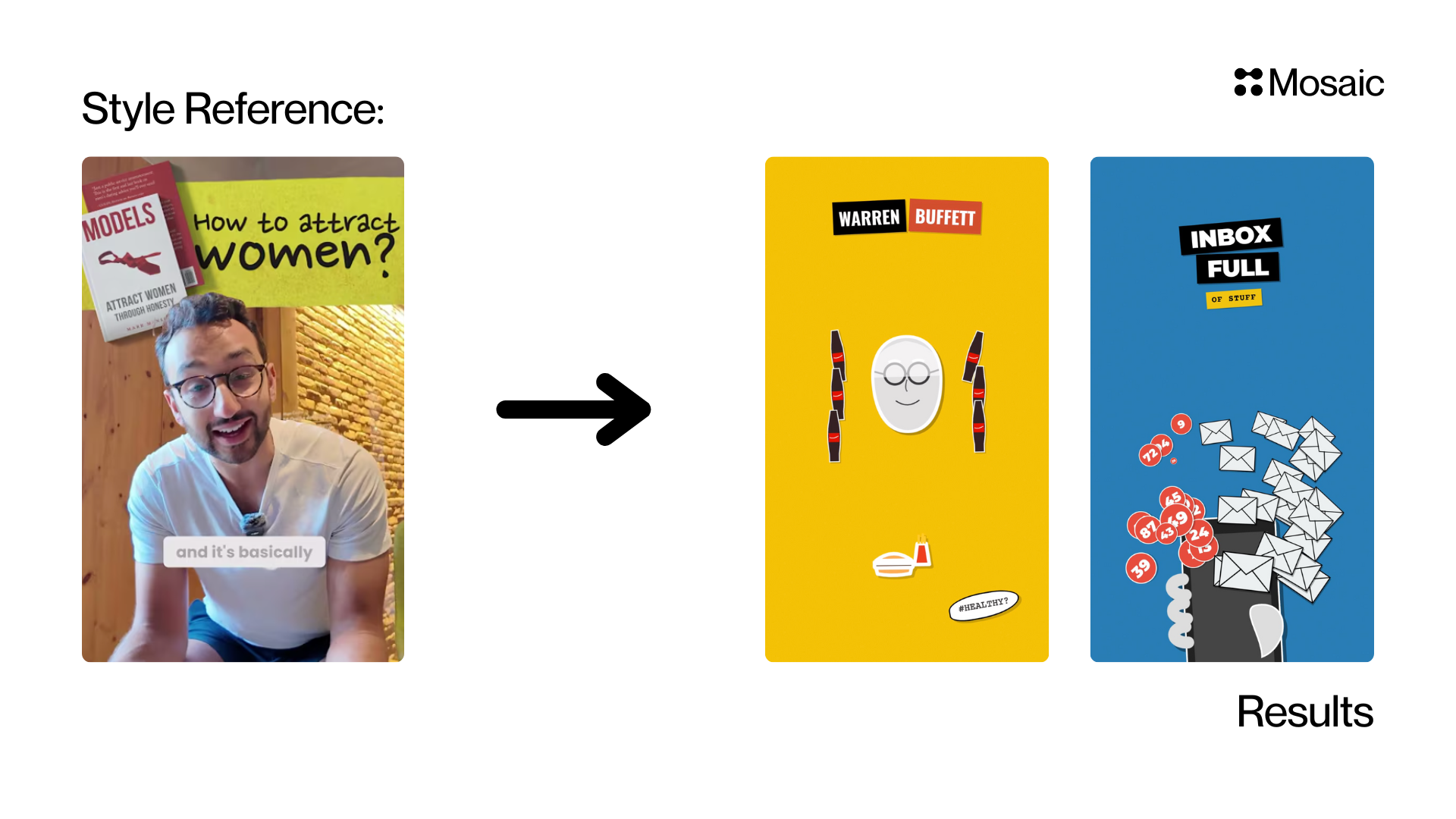
### Style Reference Video (Optional)
Paste a **reference video URL** (typically YouTube) to extract style direction. Mosaic uses this for typography, color, transitions, and layout guidance (`style_video_url`).
### Frequency (Optional)
Choose how often motion graphics should appear:
* **Auto** lets Mosaic choose based on the content
* **Low** targets about 3 graphics per minute
* **Medium** targets about 5 graphics per minute
* **High** targets about 10 graphics per minute
### Style Suggestions (Quick Buttons)
Common presets like **VOX Style** and **Ali Abdaal Style** that instantly fill the prompt for you.
For longer videos (over \~1–2 minutes), this tile may time out. We're actively working on removing this limitation. For now, it works best with **short clips, intros, and explainers**.
## Best Use Cases
Motion Graphics works great for explainers, educational content, product breakdowns, tutorials, commentary videos, and infographic storytelling. It boosts retention when explaining complex topics.
* Provide **functional intent** (e.g. "help explain talking points", "highlight key stats")
* Provide **style** + **context** instead of just style alone
* Use reference videos for best results
* Enable fullscreen mode for heavy infographic content
* Recommended prompt structure: `[Style] + [Function] + [Tone] + [Timeline Behavior]`
**Explainer style:**
> "Clean vector infographic overlays with labels and arrows, educational tone."
**YouTube short:**
> "Fast-paced kinetic text and icons, playful tone, highlight key punchlines."
**Product tutorial:**
> "UI-style overlays showing click targets and step-by-step labels, minimal style."
**Vox-style:**
> "Vox-style infographic overlays that highlight statistics during key sentences, clean modern typography, minimal color palette, educational tone."
Motion Graphics pairs well with [Rough Cut](/tiles/rough-cut) (condense first, then add graphics), [Reframe](/tiles/reframe) (adapt for different platforms), and [Captions](/tiles/captions) (add subtitles on top).
***
## API Info
* **Node ID:** `19144346-8714-4a02-b19c-32c18bd1ad13`
### Node params
| Param | Type | Required | Default | Notes |
| ------------------------------------ | ------------------------------ | -------- | -------- | ------------------------------------------------------------------------------- |
| `prompt` | `string` | Yes | `""` | Primary generation instruction. |
| `model_tier` | `"fast" \| "pro"` | No | `"fast"` | Controls model quality/speed profile. |
| `reference_links` | `string \| string[]` | No | `""` | URLs used as research context. Runtime normalizes comma/newline/array forms. |
| `style_video_url` | `string` | No | `""` | Reference video URL (UI expects YouTube URL format). |
| `frequency_per_minute` | `"auto" \| "3" \| "5" \| "10"` | No | `"auto"` | Motion graphics frequency: auto, low (3/min), medium (5/min), or high (10/min). |
| `only_generate_full_screen_graphics` | `boolean` | No | `false` | Fullscreen-only graphics mode. |
### Parameter groups
* **Core intent (required):** `prompt`
* **Generation quality:** `model_tier`
* **Research/style references:** `reference_links`, `style_video_url`
* **Layout behavior:** `frequency_per_minute`, `only_generate_full_screen_graphics`
### Runtime notes
* Handler resolves prompt from multiple fields (`node params.prompt`, `node params.user_prompt`, `agent_node.user_prompt`, `agent_node.prompt`).
* `reference_links` normalization accepts strings, arrays, or mixed delimiters.
* `style_video_url` is the strongest style signal. Set it when you need consistent visual style matching.
* `reference_links` provide factual/research context and are not a direct replacement for style references.
* Use the exact API key `only_generate_full_screen_graphics` for fullscreen mode.
### Example
```json theme={null}
{
"prompt": "Create clean infographic overlays that emphasize key talking points.",
"model_tier": "pro",
"reference_links": [
"https://example.com/research/article-1",
"https://example.com/research/article-2"
],
"style_video_url": "https://www.youtube.com/watch?v=dQw4w9WgXcQ",
"frequency_per_minute": "5",
"only_generate_full_screen_graphics": false
}
```
## Input Fields & Controls
### Style Prompt (Required)
Describe the **visual style** and **function** of the graphics.
Examples:
* "Cinematic Vox-style graphics that explain the talking points"
* "Minimal tech UI diagrams with arrows and labels"
* "Playful YouTube-style pop-up text for comedic emphasis"
* "Infographic overlays using bold colors and icons"
### Full Screen Toggle (Optional)
When **enabled**, motion graphics appear as fullscreen slides — the speaker video may cut away entirely. Best for explainers, charts, and data slides.
When **disabled** (default), graphics appear as overlays on top of your video. Ideal for speaking-head, narrative, or commentary videos.
### Reference Links (Optional)
Comma-separated URLs the AI will research for factual content (e.g., product pages, Wikipedia articles, docs).
### Style Reference Video (Optional)
Paste a **reference video URL** (typically YouTube) to extract style direction. Mosaic uses this for typography, color, transitions, and layout guidance (`style_video_url`).
### Frequency (Optional)
Choose how often motion graphics should appear:
* **Auto** lets Mosaic choose based on the content
* **Low** targets about 3 graphics per minute
* **Medium** targets about 5 graphics per minute
* **High** targets about 10 graphics per minute
### Style Suggestions (Quick Buttons)
Common presets like **VOX Style** and **Ali Abdaal Style** that instantly fill the prompt for you.
For longer videos (over \~1–2 minutes), this tile may time out. We're actively working on removing this limitation. For now, it works best with **short clips, intros, and explainers**.
## Best Use Cases
Motion Graphics works great for explainers, educational content, product breakdowns, tutorials, commentary videos, and infographic storytelling. It boosts retention when explaining complex topics.
* Provide **functional intent** (e.g. "help explain talking points", "highlight key stats")
* Provide **style** + **context** instead of just style alone
* Use reference videos for best results
* Enable fullscreen mode for heavy infographic content
* Recommended prompt structure: `[Style] + [Function] + [Tone] + [Timeline Behavior]`
**Explainer style:**
> "Clean vector infographic overlays with labels and arrows, educational tone."
**YouTube short:**
> "Fast-paced kinetic text and icons, playful tone, highlight key punchlines."
**Product tutorial:**
> "UI-style overlays showing click targets and step-by-step labels, minimal style."
**Vox-style:**
> "Vox-style infographic overlays that highlight statistics during key sentences, clean modern typography, minimal color palette, educational tone."
Motion Graphics pairs well with [Rough Cut](/tiles/rough-cut) (condense first, then add graphics), [Reframe](/tiles/reframe) (adapt for different platforms), and [Captions](/tiles/captions) (add subtitles on top).
***
## API Info
* **Node ID:** `19144346-8714-4a02-b19c-32c18bd1ad13`
### Node params
| Param | Type | Required | Default | Notes |
| ------------------------------------ | ------------------------------ | -------- | -------- | ------------------------------------------------------------------------------- |
| `prompt` | `string` | Yes | `""` | Primary generation instruction. |
| `model_tier` | `"fast" \| "pro"` | No | `"fast"` | Controls model quality/speed profile. |
| `reference_links` | `string \| string[]` | No | `""` | URLs used as research context. Runtime normalizes comma/newline/array forms. |
| `style_video_url` | `string` | No | `""` | Reference video URL (UI expects YouTube URL format). |
| `frequency_per_minute` | `"auto" \| "3" \| "5" \| "10"` | No | `"auto"` | Motion graphics frequency: auto, low (3/min), medium (5/min), or high (10/min). |
| `only_generate_full_screen_graphics` | `boolean` | No | `false` | Fullscreen-only graphics mode. |
### Parameter groups
* **Core intent (required):** `prompt`
* **Generation quality:** `model_tier`
* **Research/style references:** `reference_links`, `style_video_url`
* **Layout behavior:** `frequency_per_minute`, `only_generate_full_screen_graphics`
### Runtime notes
* Handler resolves prompt from multiple fields (`node params.prompt`, `node params.user_prompt`, `agent_node.user_prompt`, `agent_node.prompt`).
* `reference_links` normalization accepts strings, arrays, or mixed delimiters.
* `style_video_url` is the strongest style signal. Set it when you need consistent visual style matching.
* `reference_links` provide factual/research context and are not a direct replacement for style references.
* Use the exact API key `only_generate_full_screen_graphics` for fullscreen mode.
### Example
```json theme={null}
{
"prompt": "Create clean infographic overlays that emphasize key talking points.",
"model_tier": "pro",
"reference_links": [
"https://example.com/research/article-1",
"https://example.com/research/article-2"
],
"style_video_url": "https://www.youtube.com/watch?v=dQw4w9WgXcQ",
"frequency_per_minute": "5",
"only_generate_full_screen_graphics": false
}
```