Overview
Agents are pre-built workflows that process your videos with AI-powered editing capabilities. Each agent is designed for specific tasks like generating captions, creating shorts, or enhancing audio.
Creating Agents
First, create an agent on edit.mosaic.so. Once created, you can find the agent ID in the URL when viewing your agent.
POST /agent/[agent_id]/run
Execute an agent workflow. Supports standard video-input workflows and AI-only workflows (AI Content Generation or AI Avatar).
Standard Workflows
For workflows starting with a Video Input node, you must provide video URLs. The backend will automatically detect the URL type, download the video, and run the workflow.
curl -X POST "https://api.mosaic.so/agent/[agent_id]/run" \
  -H "Authorization: Bearer mk_your_api_key" \
  -H "Content-Type: application/json" \
  -d '{
    "video_urls": [
      "https://www.youtube.com/watch?v=dQw4w9WgXcQ"
    ],
    "callback_url": "https://your-webhook.com/callback"
  }'
AI-Only Workflows
For workflows starting with AI Content Generation or AI Avatar nodes (and no Video Input node), no video inputs should be provided. These agents generate video content based on the parameters configured in the agent.
curl -X POST "https://api.mosaic.so/agent/[agent_id]/run" \
  -H "Authorization: Bearer mk_your_api_key" \
  -H "Content-Type: application/json" \
  -d '{
    "callback_url": "https://your-webhook.com/callback",
    "update_params": {
      "NODE_ID": {
        "prompt": "A futuristic city in the style of cyberpunk"
      }
    }
  }'
Parameters
| Field | Type | Required | Description |
|---|
| video_urls | string[] | | Array of video URLs to process. Required if the agent has a video input node. Supports YouTube URLs and signed URLs (HTTP/HTTPS). |
| callback_url | string | | Optional webhook URL for status updates |
| update_params | object | | Optional parameters to override node parameters in the agent workflow |
Video URL Requirements & Limits
The video_urls field supports two types of URLs:
YouTube URLs:
- Supports standard YouTube video URLs (e.g.,
https://www.youtube.com/watch?v=VIDEO_ID)
- Maximum duration: 1 hour per video
- The system automatically validates the video exists and checks duration before processing
Signed URLs (HTTP/HTTPS):
- Must be HTTP or HTTPS URLs pointing to video files
- Maximum file size: 5 GB per video
- Maximum duration: 3 hours per video
Modifying Node Parameters
You can override specific parameters for any node in your agent workflow using the update_params field. This allows you to dynamically change behavior (like clip duration, prompt text, or number of clips) at runtime.
To find the correct parameters:
- Open your agent in the Mosaic Dashboard
- Click the settings icon on the node you want to modify
- Click “Learn more about [Node Name]” to expand the dev details
- Click Copy parameters to get the JSON structure
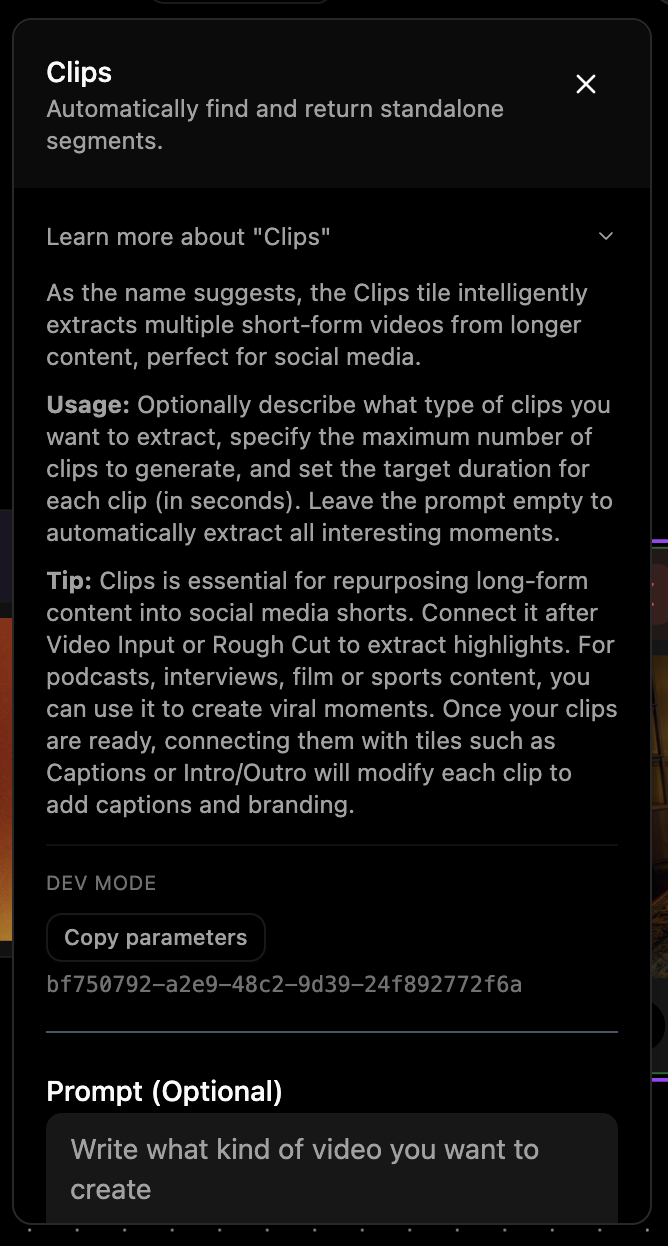 The copied JSON will look like this, where the key is the Node ID (UUID) and the value object contains the parameters you can override:
{
  "bf750792-a2e9-48c2-9d39-24f892772f6a": {
    "num_clips": 10,
    "target_duration": 60
  }
}
update_params value in your API request.
Some nodes accept images, audio, or videos as parameters. To set these programmatically, use the Uploads API to upload your files and get their UUIDs:
{
  "video_urls": ["https://youtube.com/watch?v=..."],
  "update_params": {
    "AUDIO_NODE_ID": {
      "audio_id": "your-uploaded-audio-uuid"
    },
    "IMAGE_NODE_ID": {
      "image_id": "your-uploaded-image-uuid"
    }
  }
}
Response
{
  "run_id": "7f8d9c2b-4a6e-8b3f-1d5c-9e2f3a4b5c6d"
}
run_id is used to track the progress of your agent run.
GET /agent_run/[run_id]
Poll this endpoint to check the status of your agent run and retrieve outputs.
Request
curl -X GET "https://api.mosaic.so/agent_run/[run_id]" \
  -H "Authorization: Bearer mk_your_api_key"
Response
{
  "agent_id": "123e4567-e89b-12d3-a456-789012345678",
  "started_at": "2025-01-10T14:30:00Z",
  "status": "completed",
  "status_message": null,
  "node_status_counts": {
    "completed": 10,
    "in_progress": 0,
    "failed": 0
  },
  "inputs": [
    {
      "video_url": "https://storage.googleapis.com/mosaic-inputs/...",
      "thumbnail_url": "https://storage.googleapis.com/mosaic-inputs/..."
    }
  ],
  "outputs": [
    {
      "id": "7ba7b810-9dad-11d1-80b4-00c04fd430c8",
      "video_url": "https://storage.googleapis.com/mosaic-outputs/...",
      "thumbnail_url": "https://storage.googleapis.com/mosaic-thumbnails/...",
      "completed_at": "2025-01-10T14:35:30Z",
      "original_node_id": "2ba7b810-9dad-11d1-80b4-00c04fd430c8"
    }
  ]
}
Output Fields
| Field | Type | Description |
|---|
id | string | Unique identifier for this output render |
video_url | string | Signed URL to download the rendered video (valid for 7 days) |
thumbnail_url | string | null | Signed URL to download the video thumbnail |
completed_at | string | ISO 8601 timestamp when this output finished rendering |
original_node_id | string | null | Template agent_node_id this output originated from. Use this to map outputs to specific nodes in your agent. |
Tracking outputs: Use original_node_id to identify which node in your agent template produced each output. This allows you to consistently map outputs to your application logic across multiple runs.
### Status Values

| Status | Description |
| --- | --- |
| running | Agent is processing your videos |
| completed | Processing finished successfully |
| partial_complete | Some outputs finished successfully, but others failed |
| failed | The entire run failed, no outputs generated |
| cancelled | The run was cancelled by the user |

---

## POST /agent_run/[run_id]/cancel

Cancel an ongoing agent run. This stops all running tasks and prevents downstream nodes from starting.

### Request
```bash
curl -X POST "https://api.mosaic.so/agent_run/[run_id]/cancel" \
  -H "Authorization: Bearer mk_your_api_key"
Response
{
  "success": true,
  "run_id": "7f8d9c2b-4a6e-8b3f-1d5c-9e2f3a4b5c6d",
  "tasks_cancelled": 2,
  "nodes_reset": 3,
  "message": "Agent run cancelled successfully"
}
Webhook Callbacks
If you provide a callback_url when running an agent, Mosaic will send POST requests to notify you of status changes. See the Webhooks section for complete webhook documentation.
Next Steps

