

How It Works
The Captions tile listens to your video audio, transcribes speech, and overlays timed captions. You control how they look — from fonts and stroke to placement and coloring. Captions are auto-timed to speech and update in real-time based on your styling choices.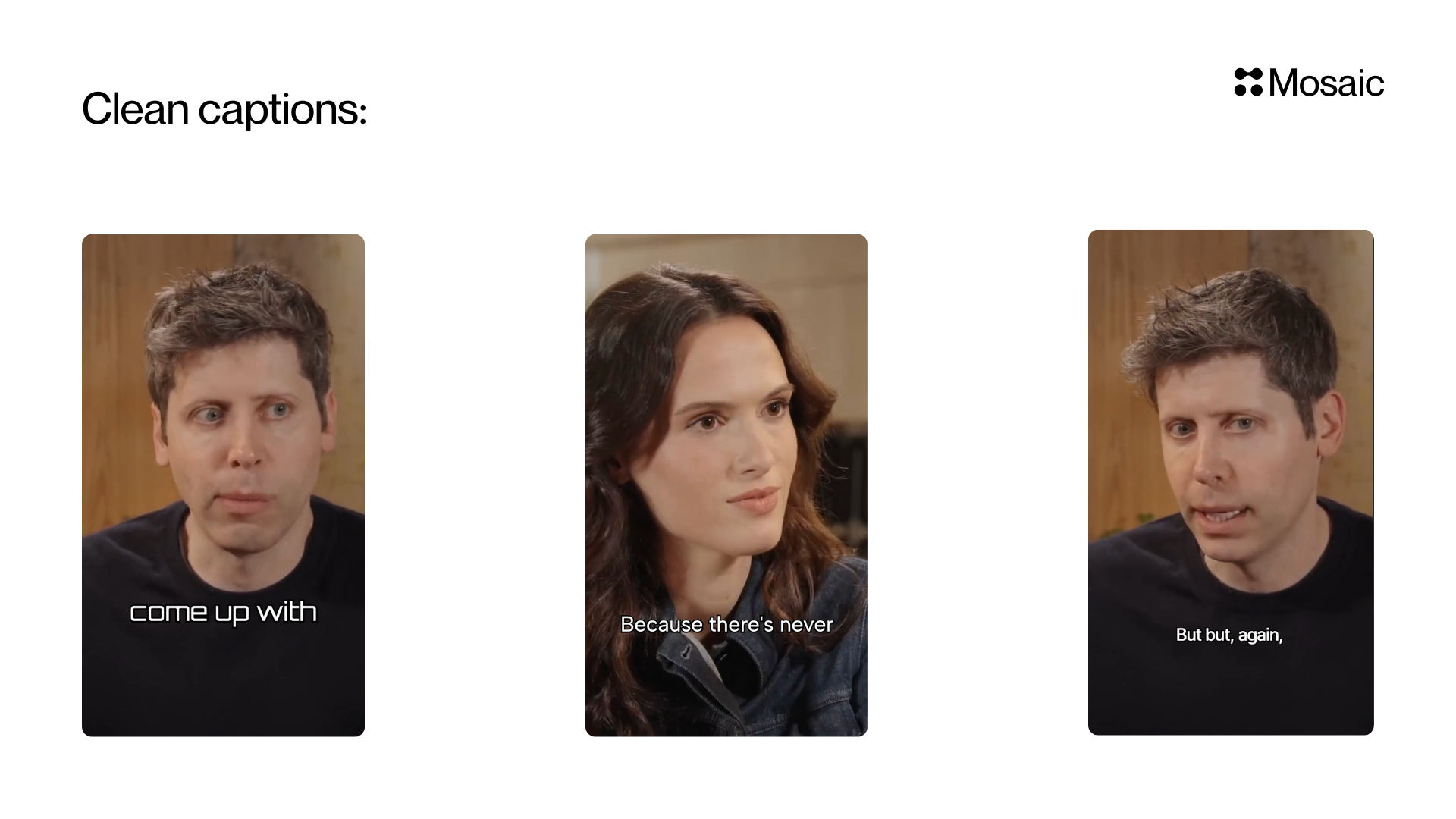
Input and Settings
Caption Style
Controls how captions are visually rendered. APIcaption_style values:
colored→ Highlights key words with yourhighlight_colorscaling→ Emphasis via animated word scalingkaraoke→ Progressive karaoke-style emphasis
stroke_color and stroke_enabled are controlled separately from caption_style.
Great for:
- Retention editing
- Educational clips
- Talking-head explanatory content
Colors
You can customize three visual layers: Base ColorDefault text color (e.g.,
#FFFFFF for white)
Highlight ColorUsed to emphasize specific words — increases engagement & readability Stroke Color
Outline around text for contrast on busy footage
Font Options
Set the typography style to match your brand. Controls include:- Font Family (e.g., Montserrat)
- Font Weight (e.g., 400 / 700)
- Exact Size (optional pixel value)
- Bold fonts for TikTok/Shorts
- Light/fonts for cinematic edits
The Sun Heavy Condensed, The Sun Heavy Narrow, The Sun Bold, The Sun Bold Italic, The Sun Medium, The Sun Medium Italic, The Sun Regular, The Sun Italic) and Knockout. These render from bundled font files rather than Google Fonts.
By default, caption size is automatic and scales to the composition. Set caption_font_size_px only when you need an exact pixel size; send null to clear an existing exact-size setting.
Drop Shadow
Enable a drop shadow when captions need extra separation from busy footage. Controls:shadow_enabledshadow_colorshadow_blurshadow_opacity
Vertical Position
Adjust how high/low captions sit in the frame (via percentage slider). Examples:90%→ Just above bottom edge (common for shorts)50%→ Centered (cinematic)20%→ Top aligned (when lower third is busy)
Words per Caption
Controls pacing and readability. Two sliders:- Minimum words
- Maximum words
Min 1 / Max 3→ Fast TikTok pacingMin 3 / Max 7→ YouTube educational pacing
API Info
Node Params & API Details
Node Params & API Details
- Node ID:
cdccb204-168e-4aec-aa72-480b11e74324
Node params
Parameter groups
- Render style:
caption_style,base_color,highlight_color,stroke_color,stroke_enabled,shadow_enabled,shadow_color,shadow_blur,shadow_opacity - Typography:
caption_font,caption_font_weight,caption_font_size_px - Layout & pacing:
caption_vertical_position,caption_min_words,caption_max_words
Scenario requirements
- Keep
caption_min_words <= caption_max_words. - Use valid hex color strings for color fields.
caption_font_weightmust be sent as a string (for example"700"), not a number.- Omit
caption_font_size_pxto preserve the current sizing mode; set it for exact pixel sizing; sendnullto clear exact sizing and return to automatic sizing.
Runtime notes
- For deterministic output, set style, typography, and pacing fields explicitly.
- For API overrides, pass these fields via
update_params[agent_node_id].