

How It Works
The Motion Graphics tile takes in your video and a prompt describing the type of motion graphics you want, then generates visual elements that match your style and intent.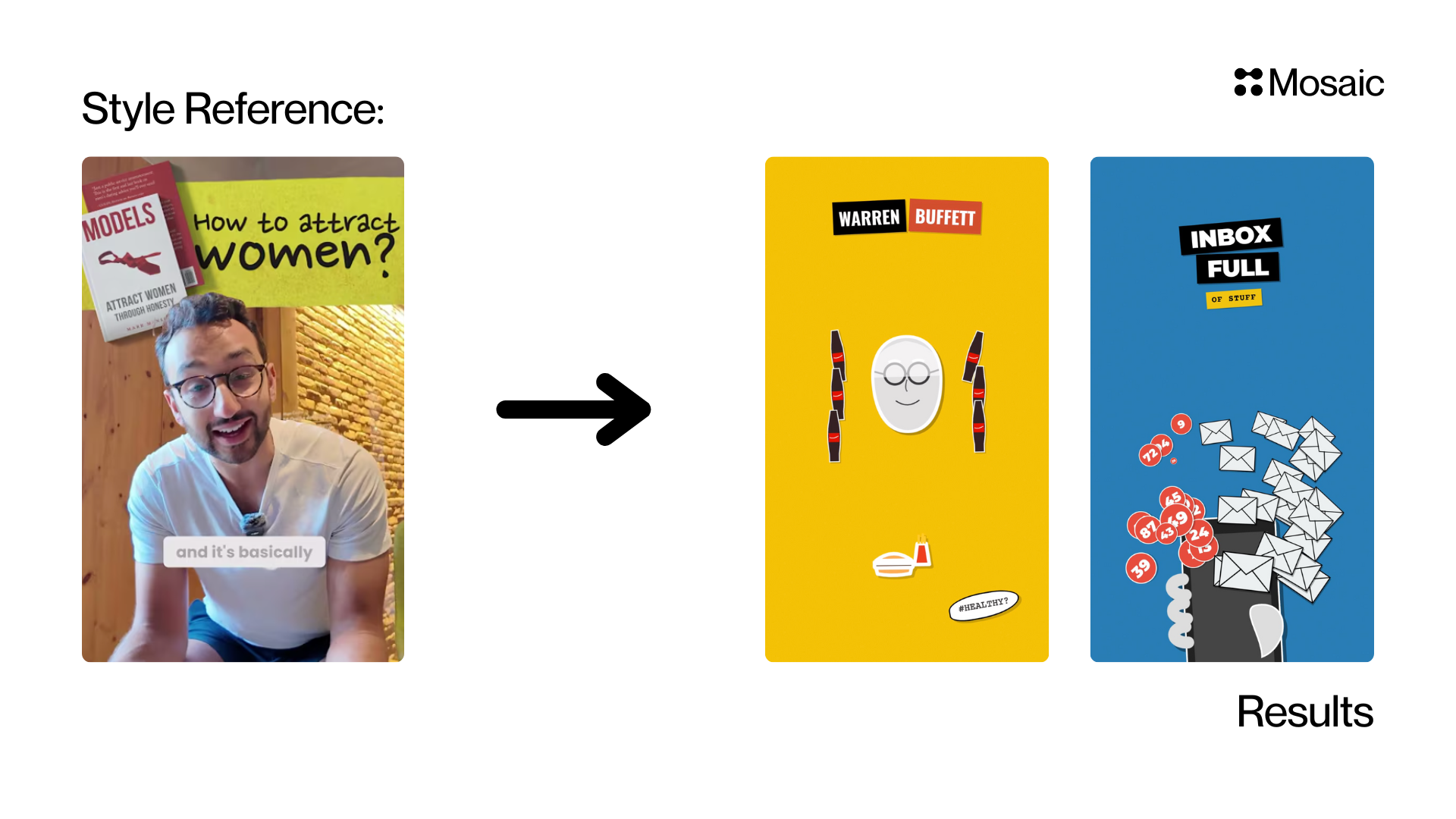
Input Fields & Controls
Style Prompt (Required)
Describe the visual style and function of the graphics. Examples:- “Cinematic Vox-style graphics that explain the talking points”
- “Minimal tech UI diagrams with arrows and labels”
- “Playful YouTube-style pop-up text for comedic emphasis”
- “Infographic overlays using bold colors and icons”
Full Screen Toggle (Optional)
When enabled, motion graphics appear as fullscreen slides — the speaker video may cut away entirely. Best for explainers, charts, and data slides. When disabled (default), graphics appear as overlays on top of your video. Ideal for speaking-head, narrative, or commentary videos.Reference Links (Optional)
Comma-separated URLs the AI will research for factual content (e.g., product pages, Wikipedia articles, docs).Style Reference Video (Optional)
Paste a reference video URL (typically YouTube) to extract style direction. Mosaic uses this for typography, color, transitions, and layout guidance (style_video_url).
Frequency (Optional)
Choose how often motion graphics should appear:- Auto lets Mosaic choose based on the content
- Low targets about 3 graphics per minute
- Medium targets about 5 graphics per minute
- High targets about 10 graphics per minute
Style Suggestions (Quick Buttons)
Common presets like VOX Style and Ali Abdaal Style that instantly fill the prompt for you.For longer videos (over ~1–2 minutes), this tile may time out. We’re actively working on removing this limitation. For now, it works best with short clips, intros, and explainers.
Best Use Cases
Motion Graphics works great for explainers, educational content, product breakdowns, tutorials, commentary videos, and infographic storytelling. It boosts retention when explaining complex topics.Pro Tips
Pro Tips
- Provide functional intent (e.g. “help explain talking points”, “highlight key stats”)
- Provide style + context instead of just style alone
- Use reference videos for best results
- Enable fullscreen mode for heavy infographic content
- Recommended prompt structure:
[Style] + [Function] + [Tone] + [Timeline Behavior]
Example Prompts
Example Prompts
Explainer style:
“Clean vector infographic overlays with labels and arrows, educational tone.”YouTube short:
“Fast-paced kinetic text and icons, playful tone, highlight key punchlines.”Product tutorial:
“UI-style overlays showing click targets and step-by-step labels, minimal style.”Vox-style:
“Vox-style infographic overlays that highlight statistics during key sentences, clean modern typography, minimal color palette, educational tone.”
API Info
Node Params & API Details
Node Params & API Details
- Node ID:
19144346-8714-4a02-b19c-32c18bd1ad13
Node params
Parameter groups
- Core intent (required):
prompt - Generation quality:
model_tier - Research/style references:
reference_links,style_video_url - Layout behavior:
frequency_per_minute,only_generate_full_screen_graphics
Runtime notes
- Handler resolves prompt from multiple fields (
node params.prompt,node params.user_prompt,agent_node.user_prompt,agent_node.prompt). reference_linksnormalization accepts strings, arrays, or mixed delimiters.style_video_urlis the strongest style signal. Set it when you need consistent visual style matching.reference_linksprovide factual/research context and are not a direct replacement for style references.- Use the exact API key
only_generate_full_screen_graphicsfor fullscreen mode.